For apprentices
How to sign up for AzubiWay
Five steps from your language school's code to your first application. All you need is a phone and an email address, and AzubiWay is free for you.
The five steps
Step 1Get the code from your language school
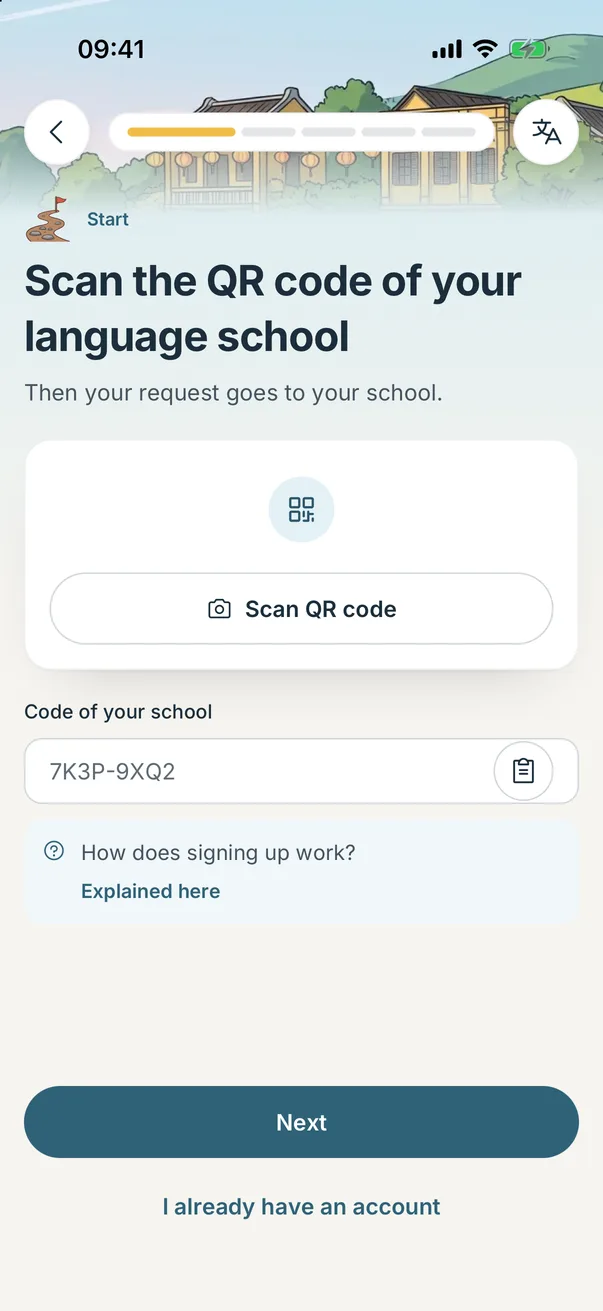
Your language school gives you a QR code or a code of eight characters, for example 7K3P-9XQ2. Download the AzubiWay app, choose your language and scan the QR code or type in the code.
Step 2Sign up with your email address
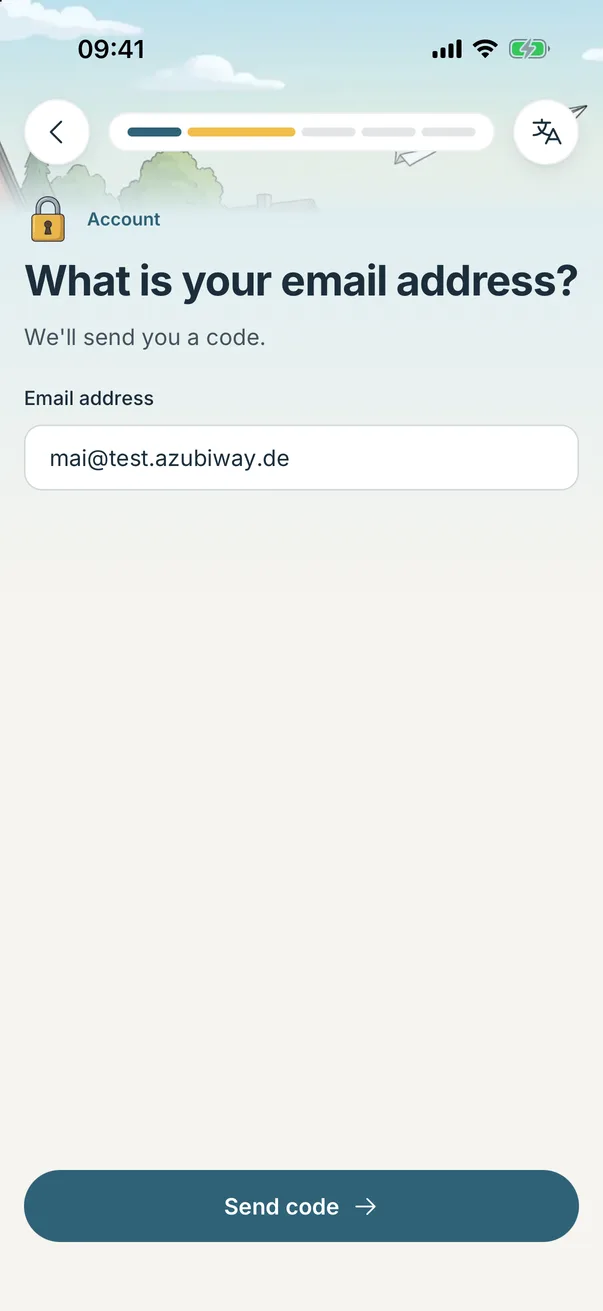
Next the app asks for your email address. You receive a six-digit code and type it in. You do not need a password.
Step 3Fill in your profile
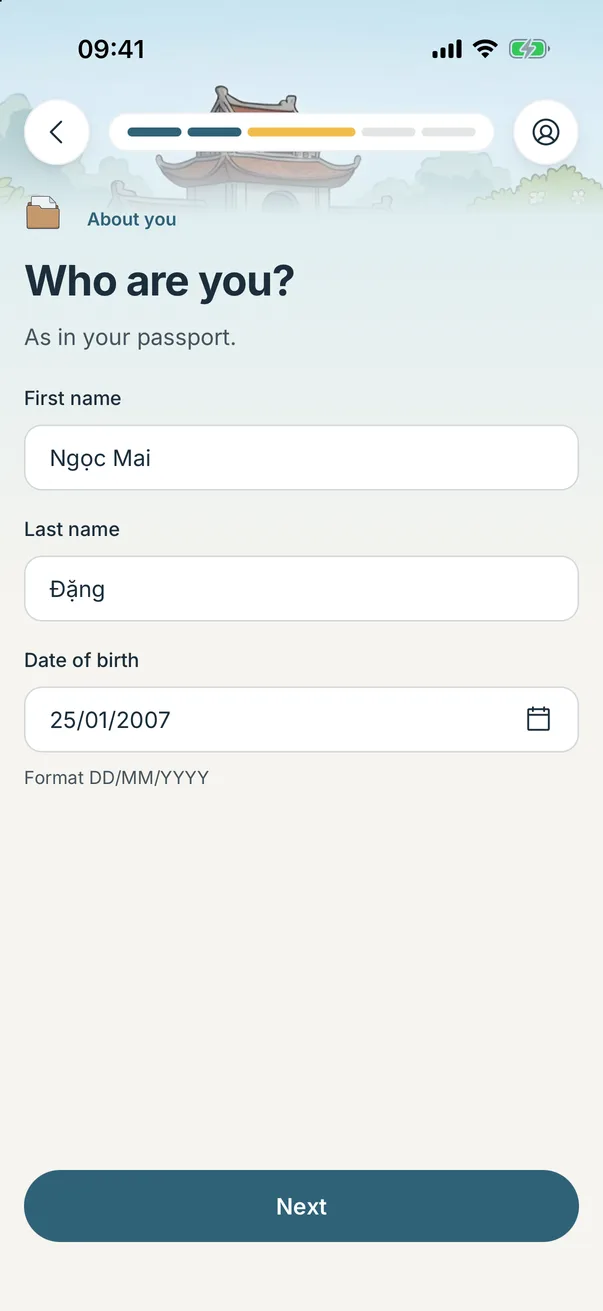
Your name as in your passport, your schooling and experience, up to five occupations you would like to train in, where and from when you would like to start, and how well you speak German. You can add a photo and a short video later.
Step 4Wait for your school to confirm you
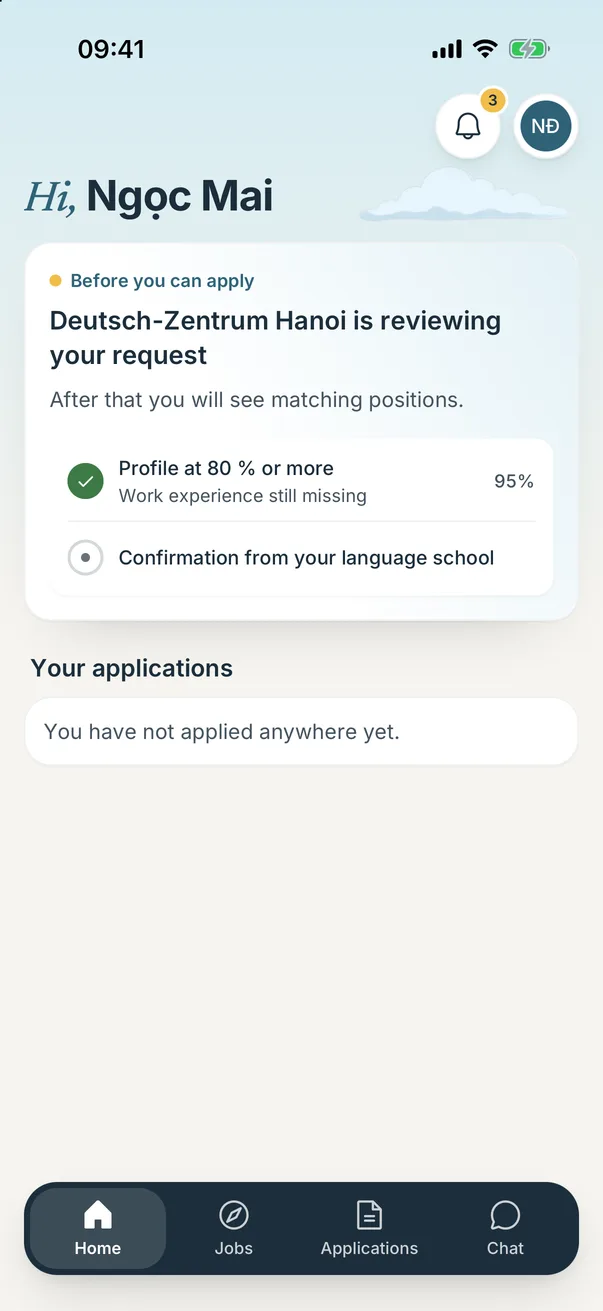
As soon as you have signed up, your request goes to your language school. The school confirms you and chooses the occupations that come into question for you. You then get a notification and an email.
Step 5Apply
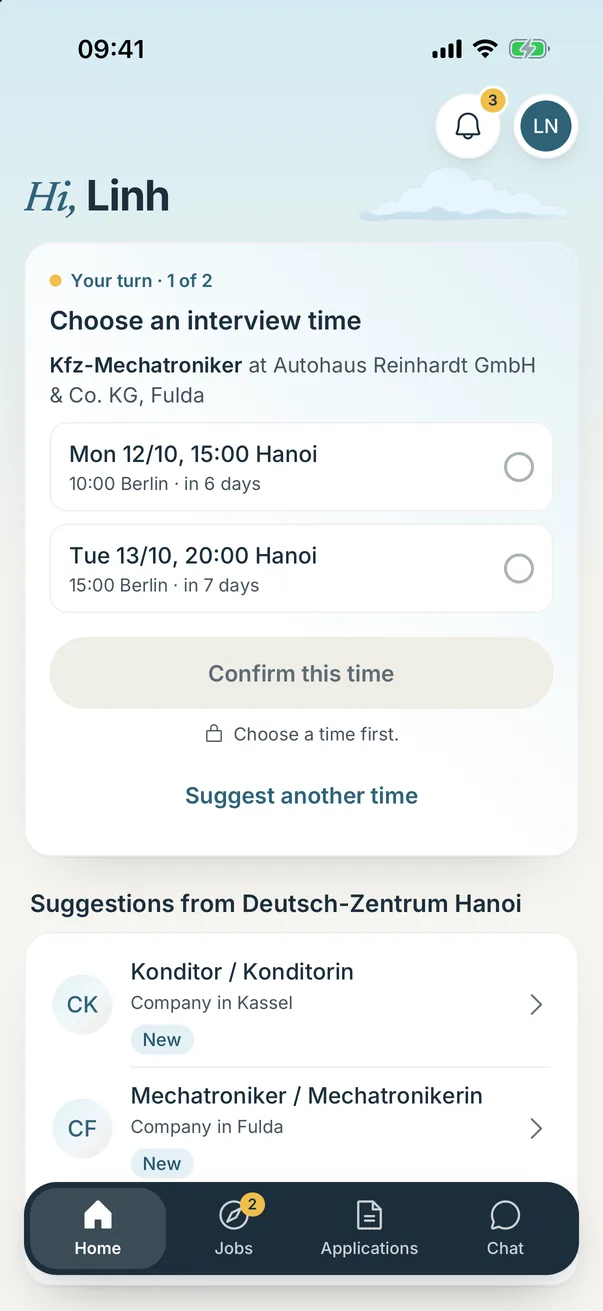
Now you see the positions in the occupations your school has opened for you, and the ones it suggests to you. You apply right in the app. If something is still missing from your profile, the app shows you what.
For language schools
How your students join AzubiWay
Your students sign up with your school's code. They can apply only once you have confirmed them.

Hand out the code and QR code
Once AzubiWay has approved your language school, you will find the card “QR code for your students” under “Settings” in your account. There you can download the QR code or print it for the classroom, copy the link or pass on the short code.

Confirm your students
New students appear under “Students” as a request, and you are notified. On the student's page you confirm them and choose the occupations that come into question.


If the code falls into the wrong hands, AzubiWay issues a new one at your request.
Get the app

- Google PlayComing soon
On a computer? Open this address on your phone: azubiway.de/app
Frequently asked questions
I don't have a code. What now?
Ask your language school for it. The school finds the code and the QR code in its AzubiWay account. If your school is not on AzubiWay yet, show it this page: further up it says how the school takes part.
My code does not work.
Check every character: the code has eight characters, for example 7K3P-9XQ2. If it still does not work, ask your school for the current code, because an old code may no longer be valid. After ten wrong attempts you have to wait an hour.
How long does the confirmation take?
That is up to your language school. As soon as it confirms you, you get a notification and an email. Until then you can finish your profile.
What happens if my school declines me?
You will see it in the app, with the reason if the school gives one. Check your name and ask again, or talk to your school.
Is the app available for Android?
Soon. For now AzubiWay is in the App Store for the iPhone. It is coming to Google Play soon.
Does the app cost anything?
No. AzubiWay charges apprentices no fee.